10 Privacy Settings You Should Change Today
Affiliate Disclosure: Some links in this article are affiliate links. If you purchase through them, we may earn a commission at no additional cost to you. We only recommend privacy tools we personally use, understand and trust.
Privacy settings are often buried several menus deep, disabled by default or described in language carefully engineered to make pressing “Accept All” feel like the sensible option. Fortunately, a handful of practical changes can reduce unnecessary tracking, protect important accounts and give you greater control over what your devices share.
You do not need to delete every account, abandon modern technology or move into a cabin where even the toaster communicates only by handwritten note. You simply need to review the settings that matter and stop granting permanent access where temporary access would do perfectly well.
This guide covers ten privacy settings you can change today across your smartphone, browser, online accounts, cloud storage and public connections. Most take only a few minutes, and none requires a degree in cryptography or an alarming quantity of black hooded clothing.
In This Guide, You Will Learn
- Which privacy settings deserve your attention first
- How to reduce app, browser and advertising tracking
- How to strengthen passwords and account recovery
- When a VPN adds meaningful protection
- How to review your progress without becoming overwhelmed
Short on time? Start with three changes: review smartphone permissions, strengthen your browser privacy settings and enable two-factor authentication on your email account.
Why Privacy Settings Matter
Every modern device produces information. Your phone can record location, app usage, nearby devices and permission history. Your browser can expose cookies, identifiers, language settings, screen dimensions and other details that help websites recognise repeat visitors. Your online accounts may share activity with advertisers, analytics providers or connected third-party services.
Not every form of data collection is malicious. Some information is required to deliver a service, prevent fraud or remember legitimate preferences. The problem begins when access becomes broader, longer-lasting or less transparent than necessary.
Good privacy settings apply a simple principle: grant the minimum access required for the shortest reasonable time. A map application may need your location while navigating. A torch application does not need it while you sleep, work or wander towards the fridge at 02:00.
The goal is not perfect privacy. That does not exist. The goal is to reduce passive exposure and make deliberate choices instead of accepting every default selected by a company whose priorities may not match yours.
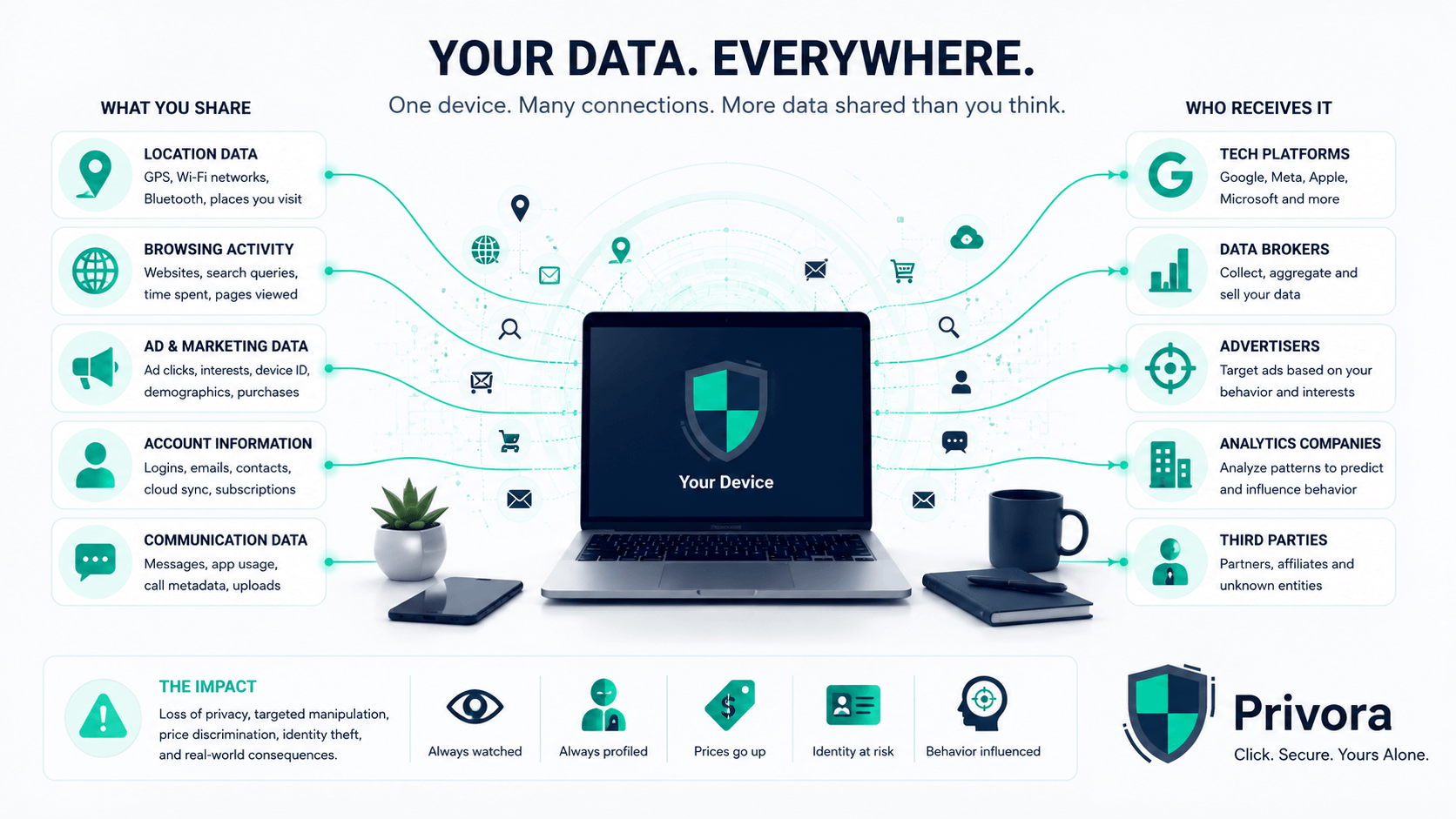
This overview shows why changing a single setting rarely solves everything. Privacy is a system: devices, browsers, accounts and networks all contribute small pieces. Improving several of those pieces produces a much stronger result than searching for one magical “private mode” button.
For a broader foundation before working through the individual settings, read Digital Privacy in 2026: A Practical Security Roadmap. It explains how email, passwords, browsing and storage fit together as one privacy stack.
1. Review Smartphone Privacy Settings and App Permissions
Your smartphone is usually the most revealing device you own. It travels with you, contains your photographs, stores messages, authenticates accounts and knows which apps you open throughout the day.
Begin with the permission manager in your phone’s privacy settings. Review access to:
- Location: Allow only while using the app unless continuous access is essential
- Microphone: Remove access from apps that have no clear audio function
- Camera: Restrict access to apps that genuinely capture or upload images
- Contacts: Avoid granting your entire address book merely to find one friend
- Photos and files: Prefer selected-item access where your phone supports it
- Nearby devices and Bluetooth: Disable access when pairing or discovery is unnecessary
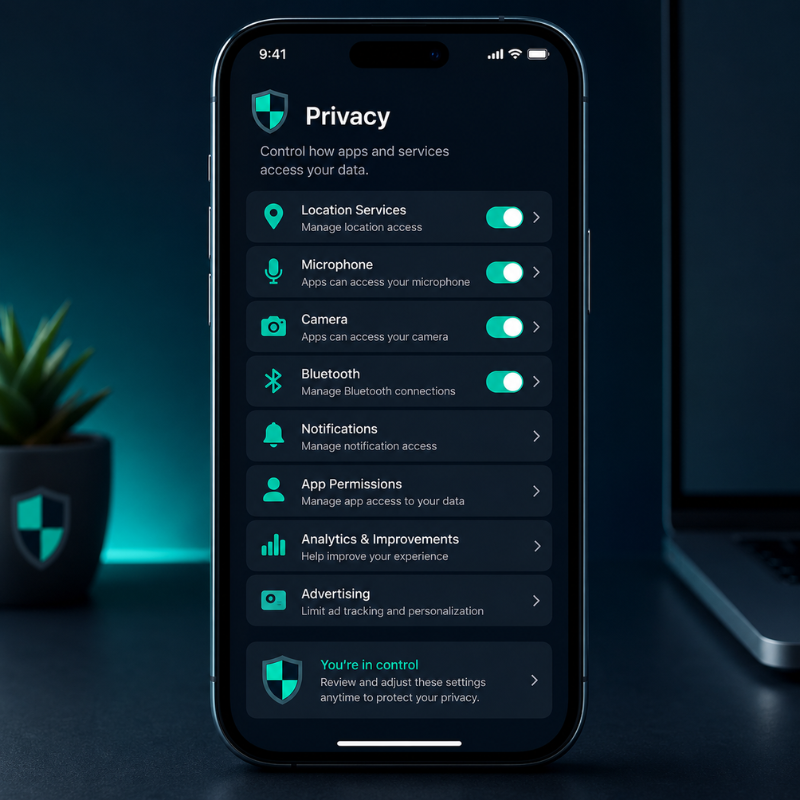
Pay particular attention to apps you installed once and forgot. An application does not become harmless merely because its icon has been gathering digital dust for nine months. Remove permissions from anything you no longer use, then uninstall it if you no longer need it.
On both Android and iPhone, newer operating systems can show which apps recently accessed sensitive permissions. Use that history. A weather app checking location while open is unsurprising. A simple calculator repeatedly checking location deserves a raised eyebrow and possibly a ceremonial uninstall.
Choose “While Using the App” Whenever Possible
Permanent permission is convenient for developers because they do not need to ask again. It is rarely convenient for your privacy. Select temporary or foreground-only access unless an app must perform a clear background function, such as turn-by-turn navigation or a fitness tracker you intentionally use.
2. Strengthen Your Browser Privacy Settings
Your browser is the doorway through which most online tracking enters. Even when you are not signed into an account, cookies, local storage, tracking scripts and browser fingerprinting can help websites recognise you across visits.
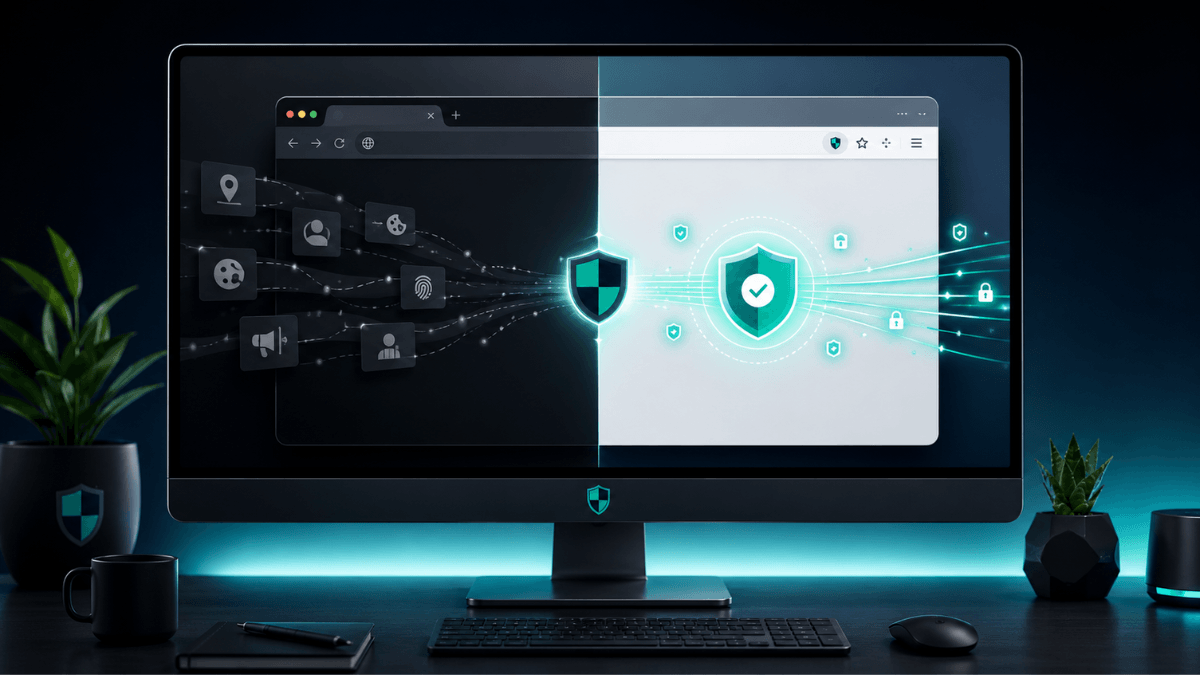
Open your browser’s privacy settings and make these changes:
- Block third-party cookies by default
- Enable strict or enhanced tracking protection
- Disable preloading or prediction features you do not need
- Clear site permissions you no longer recognise
- Review which websites may access your camera, microphone and location
- Disable automatic sign-in where it creates unnecessary account linking
Mozilla provides a useful overview of browser tracking protection through its Enhanced Tracking Protection documentation. This is a normal editorial reference, so it remains a DoFollow external link.
Incognito Mode Is Not a Privacy Shield
Private or incognito mode mainly prevents the browser from saving local history, cookies and form entries after the session closes. Websites, network administrators, internet providers and signed-in services may still observe activity.
Use private mode when you do not want information retained on the device. Use stronger tracking protection, careful account separation and—where appropriate—a VPN when your concern is broader network or advertising visibility.
Privacy setting to change now: Block third-party cookies and enable your browser’s strictest practical tracking-protection mode. If a trusted website breaks, add an exception rather than weakening protection everywhere.
3. Disable Personalised Advertising and Cross-App Tracking
Advertising privacy settings do not remove advertisements. They limit how much your behaviour is used to decide which advertisements follow you across websites, applications and devices.
Start with the advertising controls attached to your largest accounts. Google’s My Ad Centre allows you to turn personalised advertisements off and review which activity may be used for advertising. Apple devices also provide app-tracking controls under Settings > Privacy & Security > Tracking.
Review these privacy settings:
- Turn off personalised advertising where you do not find it useful
- Prevent applications from requesting cross-app tracking permission
- Reset or delete old advertising interests and inferred topics
- Review activity history used for advertising personalisation
- Disable precise location use for advertising where the option exists
Do not confuse reduced personalisation with complete anonymity. Advertising platforms may still use contextual information such as the page you are viewing, your approximate location or the time of day. The improvement is that your longer-term activity should play a smaller role in constructing the advertisement placed in front of you.
Review Tracking Permission App by App
A blanket refusal is simple, but an individual review is often more useful. Navigation, delivery and local-weather applications may have legitimate reasons to use approximate location. A game, torch or wallpaper application usually has a much less persuasive case.
On iPhone and iPad, Apple explains how to review these permissions in its official app-tracking guidance. Android menus vary by manufacturer, but the relevant controls are generally found under Privacy, Ads, Permissions or Google account settings.
Privacy setting to change now: Turn off personalised advertising and deny cross-app tracking unless an application gives you a clear, useful reason to permit it.
4. Enable Two-Factor Authentication on Critical Accounts
A strong password protects the first door. Two-factor authentication adds another lock. Even if somebody obtains your password through phishing, malware or a company breach, they still need the second factor before gaining access.
Prioritise two-factor authentication for:
- Your primary email account
- Your password manager
- Banking and payment services
- Government and healthcare portals
- Cloud storage
- Social-media and messaging accounts
Prefer an authenticator application, passkey or physical security key where available. SMS verification is still better than password-only access, but it relies on the security of your mobile number and network account.
Store Recovery Codes Before You Need Them
Two-factor authentication can protect you so enthusiastically that it also locks you out when a phone is lost or replaced. Save the recovery codes supplied during setup and keep them somewhere secure and offline.
Do not store the only copy inside the account those codes are meant to recover. That is the digital equivalent of locking the spare key inside the house and congratulating yourself on its excellent security.
Priority action: Enable two-factor authentication on your email account first. Email is commonly used to reset access to everything else.
5. Replace Reused Passwords with a Password Manager
Password reuse turns one breach into several. When the same email address and password appear across multiple services, attackers can automatically test that combination against email, shopping, social-media and financial accounts.
A password manager changes the equation. It generates and stores a different strong password for every account, leaving you with one carefully protected master password rather than thirty variations of the same memorable disaster.
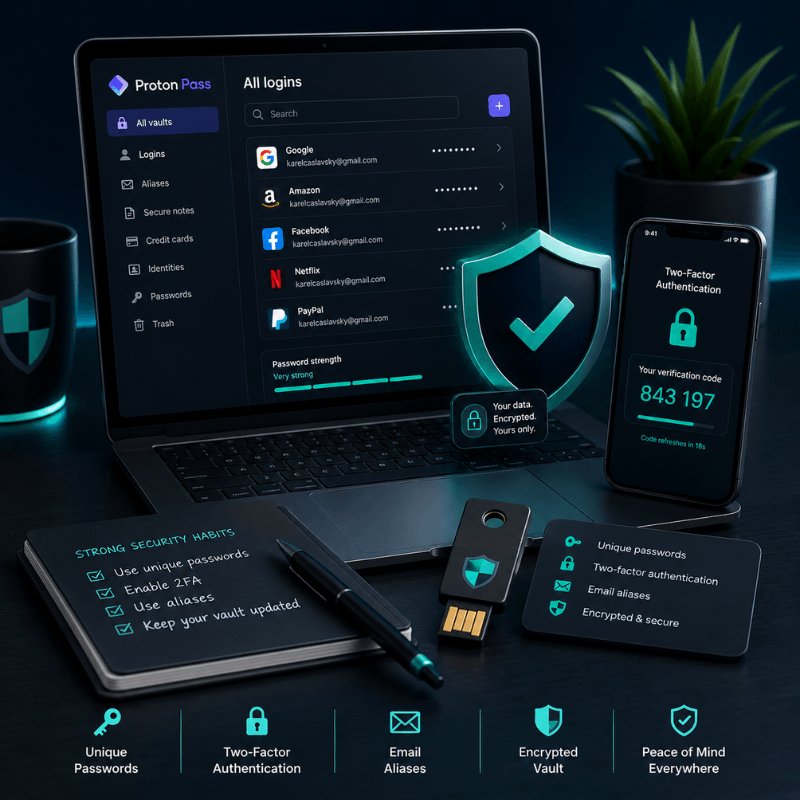
Our Practical Choice: Proton Pass
Proton Pass stores passwords in an encrypted vault, generates unique credentials, supports two-factor authentication codes and can create email aliases that hide your primary address from individual services.
- Create a unique password for every account
- Generate aliases instead of repeatedly sharing your real email address
- Autofill credentials without memorising them
- Store secure notes and recovery information
- Review weak, reused or exposed credentials
Begin with your most important accounts rather than trying to repair your entire digital history in one heroic evening. Change email, banking, cloud storage and social-media passwords first. Then work through the remaining accounts gradually.
Our detailed guide, How to Set Up Proton Pass for Maximum Security, explains importing existing passwords, identifying weak credentials, configuring autofill and setting up recovery.
Use Email Aliases for New Accounts
A unique password protects the login. A unique email alias also reduces the value of data leaked by the service. If one shop exposes an alias, you can disable that address without replacing the primary email used for banking, family and important correspondence.
Aliases are also useful for identifying the source of unwanted messages. When an address created for one service begins receiving unrelated promotions, the culprit has helpfully labelled itself.
6. Change Your Public Wi-Fi Privacy Settings
Public Wi-Fi is convenient, but it is a network controlled by somebody else. The operator can see that your device connected, and poorly secured networks may expose users to rogue access points, traffic manipulation or attempts to capture unprotected information.
Use a VPN on Networks You Do Not Control
A VPN encrypts the connection between your device and the VPN server. This helps prevent the local network operator from seeing the destinations and unencrypted details of your traffic.
Proton VPN is the service we use because it provides applications across major platforms, publishes its applications as open source and offers a genuine free plan for users who need basic protection.
Protect Public Wi-Fi with Proton VPN →A VPN does not make phishing pages safe, repair an infected device or prevent you from handing a password to the wrong website. It protects the network connection; it does not replace careful browsing, software updates or account security.
Before joining public Wi-Fi, change these device settings:
- Disable automatic connection to open networks
- Turn off file and printer sharing
- Use the device’s public-network profile where available
- Confirm the official network name with the venue
- Enable your VPN before opening sensitive accounts
- Forget the network after leaving
Proton provides further background in its public Wi-Fi safety guide.
Privacy setting to change now: Disable automatic connection to unknown Wi-Fi networks. Your phone does not need to enthusiastically greet every router it passes like an over-socialised Labrador.
7. Review Location Privacy Settings
Location data can reveal where you live, work, shop, exercise and spend your free time. Individual location points may appear harmless, but repeated access can build a detailed picture of your habits and routines.
Review every application with location permission and choose the least intrusive option that still allows the feature to work:
- Never: For applications with no legitimate location-based function
- Ask next time: For services you use occasionally
- While using the app: For maps, local search, transport and delivery services
- Always: Only for applications that genuinely require continuous background access
Disable precise location where approximate location is sufficient. A weather application generally needs to know your town, not which side of the sofa you occupy while checking whether it will rain.
Remove Location Data from Photographs
Smartphones can store GPS coordinates inside photograph metadata. Social platforms often remove some metadata during upload, but you should not assume every website, messaging service or file-sharing platform will do so.
Before publishing photographs taken at home, at work or in a sensitive location, use your phone’s sharing options to remove location details. Also review whether the camera should retain location information by default.
Privacy setting to change now: Set location access to “While Using the App” for navigation and local services, then disable it completely for applications that cannot explain why they need it.
8. Secure Your Cloud Storage Privacy Settings
Cloud storage is useful because your files remain available across devices. That convenience also means important documents, photographs, backups and personal records may sit on infrastructure controlled by another company.
Start by checking:
- Which devices are currently signed into the account
- Whether two-factor authentication is enabled
- Which folders or files have active sharing links
- Whether old collaborators still retain access
- Whether public links have passwords or expiry dates
- Which applications can access your cloud files
Delete links that are no longer required. A document shared for one project should not remain publicly accessible three years later merely because everyone forgot that the link existed.
Use End-to-End Encryption for Sensitive Files
Standard cloud services usually encrypt data while it travels and while it is stored on their servers. End-to-end encrypted storage goes further by encrypting files before they leave your device, limiting the provider’s technical ability to read the content.
Encrypted Storage with Proton Drive
Proton Drive is designed to encrypt file contents, filenames and folder information before upload. It also supports password-protected sharing and expiring links for files that need to be sent to someone else.
This does not remove the need for sensible account security, backups or careful sharing. Encryption is powerful, but it cannot rescue a document deliberately shared with the wrong recipient.
Explore Proton Drive →To understand how encrypted storage fits alongside secure email, passwords and browsing, read The Privora Perspective: Why We Back Proton.
9. Hide Sensitive Notification Previews
Lock-screen notifications are convenient, but they can expose private information to anyone who can see your phone. Messages, authentication codes, banking alerts, appointment reminders and password-reset emails may appear before the device is unlocked.
Change notification privacy settings so sensitive content appears only after successful authentication. Depending on your device, look for options such as:
- Show previews only when unlocked
- Hide sensitive notification content
- Display the application name without message text
- Disable lock-screen notifications for banking and authentication applications
- Prevent notification content from appearing on connected displays or smartwatches
This small change is especially useful in workplaces, cafés, public transport and shared households. You may trust the people around you completely; the stranger standing behind you in a supermarket queue has not yet earned the same privilege.
Protect Authentication Codes
One-time login codes should not be displayed openly on the lock screen. Hiding previews adds another barrier if your phone is misplaced, borrowed or temporarily left unattended.
Privacy setting to change now: Hide message content and verification codes until your device has been unlocked.
10. Audit Connected Accounts and Data Sharing
Over time, online accounts accumulate connections. You may have used Google, Facebook, Apple or Microsoft to sign into other services. Applications may retain permission to access email, calendars, contacts, cloud storage or profile information long after you stopped using them.
Review the security and privacy pages of your major accounts and remove:
- Applications you no longer use
- Old browser extensions with account access
- Unknown or retired devices
- Third-party services connected for one abandoned project
- Calendar, contact and cloud-storage integrations you no longer need
- Old sessions from hotels, borrowed computers or previous phones
Revoking access does not necessarily delete information the third party already collected. It does, however, stop further access through that connection and reduces the number of services able to reach your account.
Close Accounts You No Longer Use
Dormant accounts remain potential entry points. They may hold old addresses, messages, purchase history or reused credentials. If an account no longer serves a purpose, download anything you need and close it.
For email accounts in particular, make sure no important password resets, financial notices or government messages still depend on the address before closing it. Our guide explaining why your email provider reads your messages also covers a gradual migration strategy that avoids losing important correspondence.
Final action: Review connected applications and signed-in devices every three months. Remove anything you no longer recognise, trust or use.
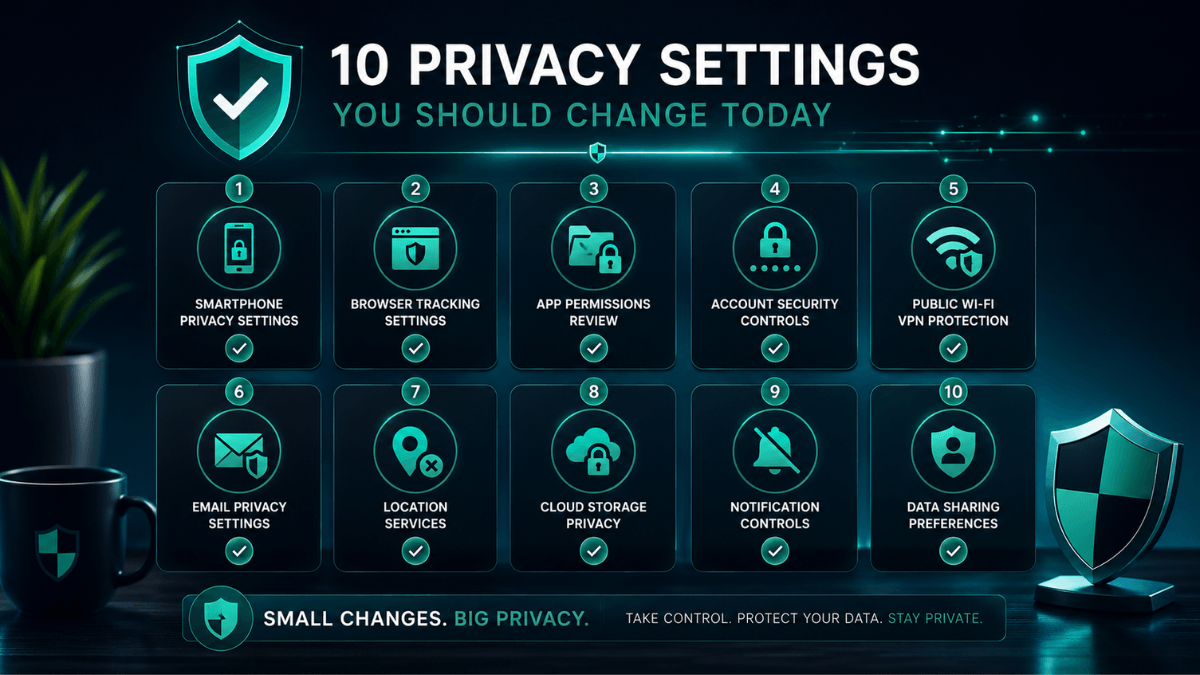
Your Privacy Settings Progress Checklist
Privacy improves through several small decisions rather than one dramatic switch. Use this checklist now, then return to it every few months as applications, devices and account permissions change.
Frequently Asked Questions About Privacy Settings
What are privacy settings?
Privacy settings control how devices, applications, browsers and online accounts collect, use and share information. They can govern permissions such as location, camera access, advertising personalisation, account connections and notification visibility.
Which privacy settings should I change first?
Begin by reviewing smartphone permissions, enabling strict browser tracking protection and activating two-factor authentication on your primary email account. These changes reduce common forms of tracking and strengthen the account used to recover many others.
Do privacy settings completely stop tracking?
No. Privacy settings reduce unnecessary collection and limit access, but they do not make you anonymous. Websites may still process information required to deliver a service, prevent fraud or comply with legal obligations.
Are password managers safe?
A reputable password manager is generally safer than reusing memorable passwords across several accounts. Choose one with strong encryption, independent audits, two-factor authentication and a clear recovery process. Protect its master password carefully and keep recovery information offline.
Should I use a VPN on public Wi-Fi?
A VPN is useful on public or unfamiliar networks because it encrypts traffic between your device and the VPN server. It does not make unsafe websites trustworthy or replace software updates, phishing awareness and strong account security.
How often should I review my privacy settings?
Review important permissions every three months and after installing major operating system updates, replacing a device or connecting a new application to an important account.
Conclusion: Change One Privacy Setting Today
Privacy settings are not glamorous. They do not produce dramatic animations, heroic music or a certificate declaring that the internet has been defeated. They simply give you more control over which applications, companies and devices can access your information.
You do not need to complete all ten changes at once. Start with the setting that addresses your greatest risk. Review your phone permissions. Secure your email with two-factor authentication. Replace one reused password. Disable automatic public Wi-Fi connections.
Once the first change is complete, make the next one. An hour spent improving privacy settings today can prevent months of unnecessary exposure, account recovery and exasperated conversations with support departments tomorrow.
Build a More Private Digital Setup
Explore the privacy tools Privora Click uses for encrypted email, safer browsing, password management and protected cloud storage.
Explore the Proton Privacy Suite →One account for Proton Mail, VPN, Pass and Drive.